
Clients
Connect clients
Point Windows, macOS, iOS, Linux, or Android WebDAV clients at your phone.
Default URL shape:
http://<phone-ip>:8080/Authenticate with any account you created (HTTP Basic). Scan the Home QR code to avoid typing the address.
Platform cheat sheet
Windows
File Explorer → This PC → Map network drive → http://<ip>:8080/ → connect with different credentials. If Basic over HTTP is blocked, allow it for the WebClient service, then retry.
macOS
Finder → Go → Connect to Server… → http://<ip>:8080/ → Registered User.
iOS / iPadOS
Files → ⋯ → Connect to Server → http://<ip>:8080/.
Android
Cx File Explorer, Solid Explorer, RaiDrive, or similar → WebDAV → host <ip>, port8080.
Linux
gio mount dav://<ip>:8080/ or Nautilus → Other Locations →dav://<ip>:8080/.
Note apps
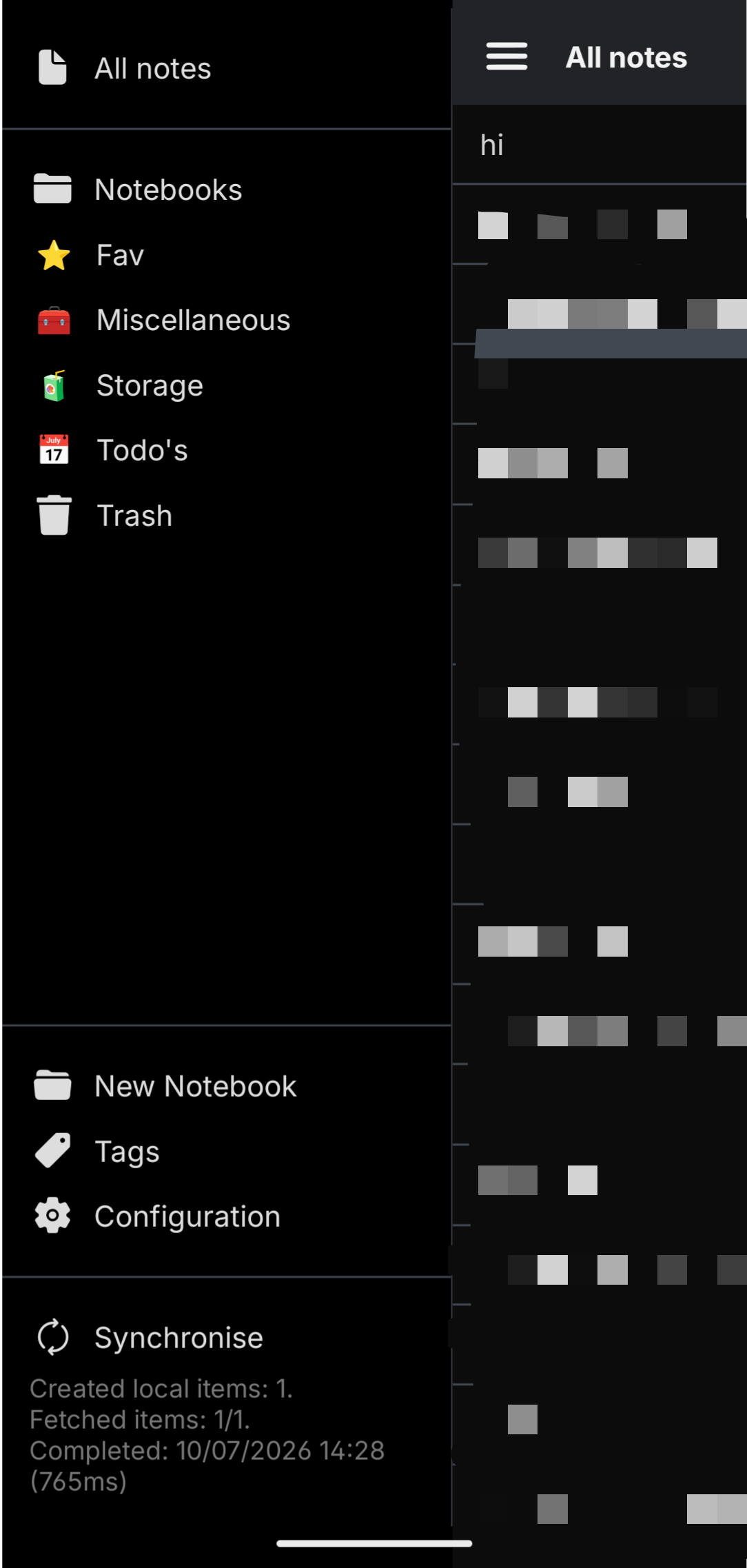
Joplin and other WebDAV-capable apps: same URL + username/password. Prefer the user account if you want a personal home folder.
Browser access (download only)
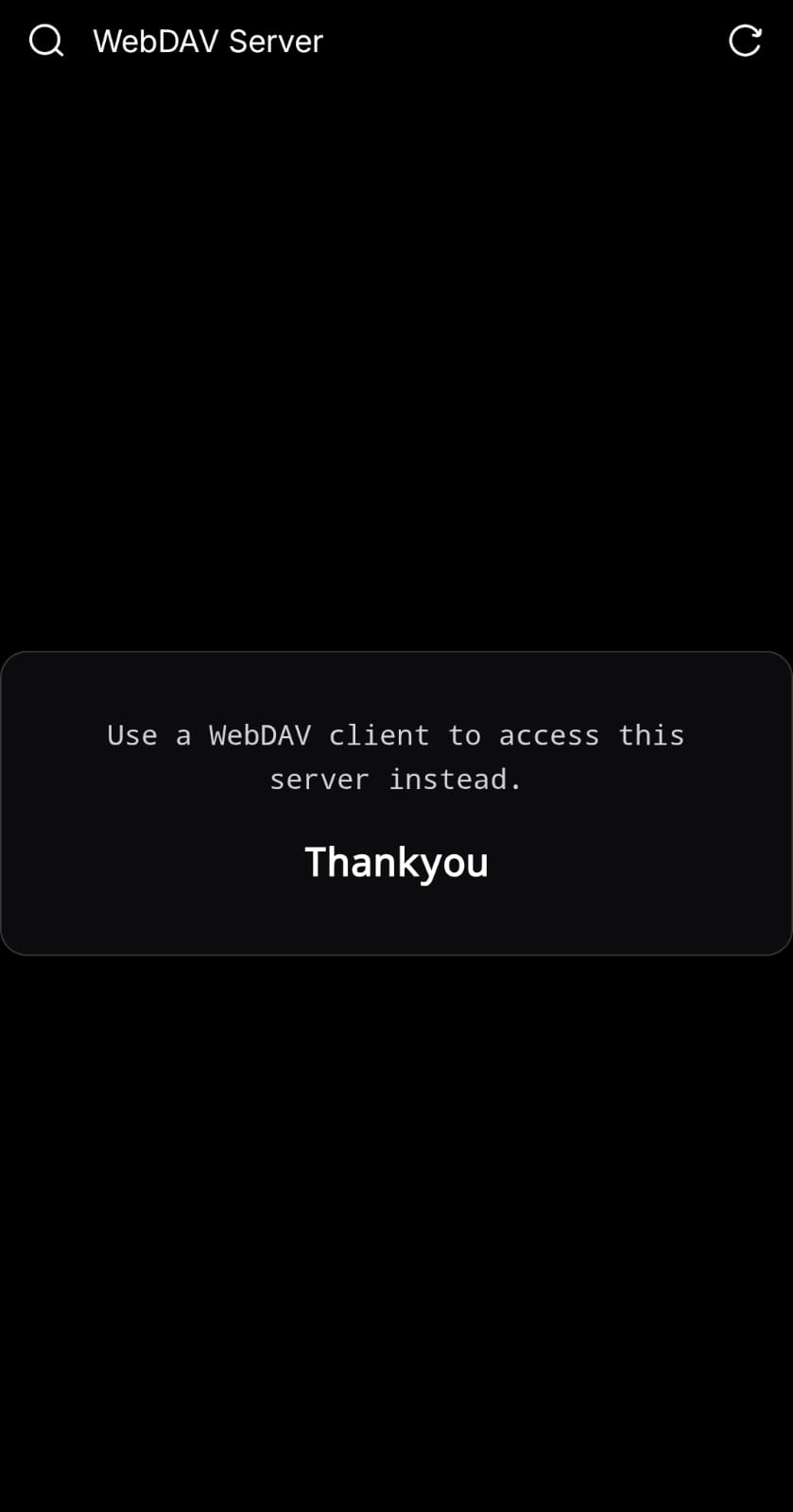
Opening the server root in a browser is not a folder listing. You get a short portal that tells you to use a real WebDAV client — the app is a server, not a web file manager.
| URL | Result |
|---|---|
/ | Short “use a WebDAV client” portal — not a directory listing |
/favicon.ico | Public app icon (no login) |
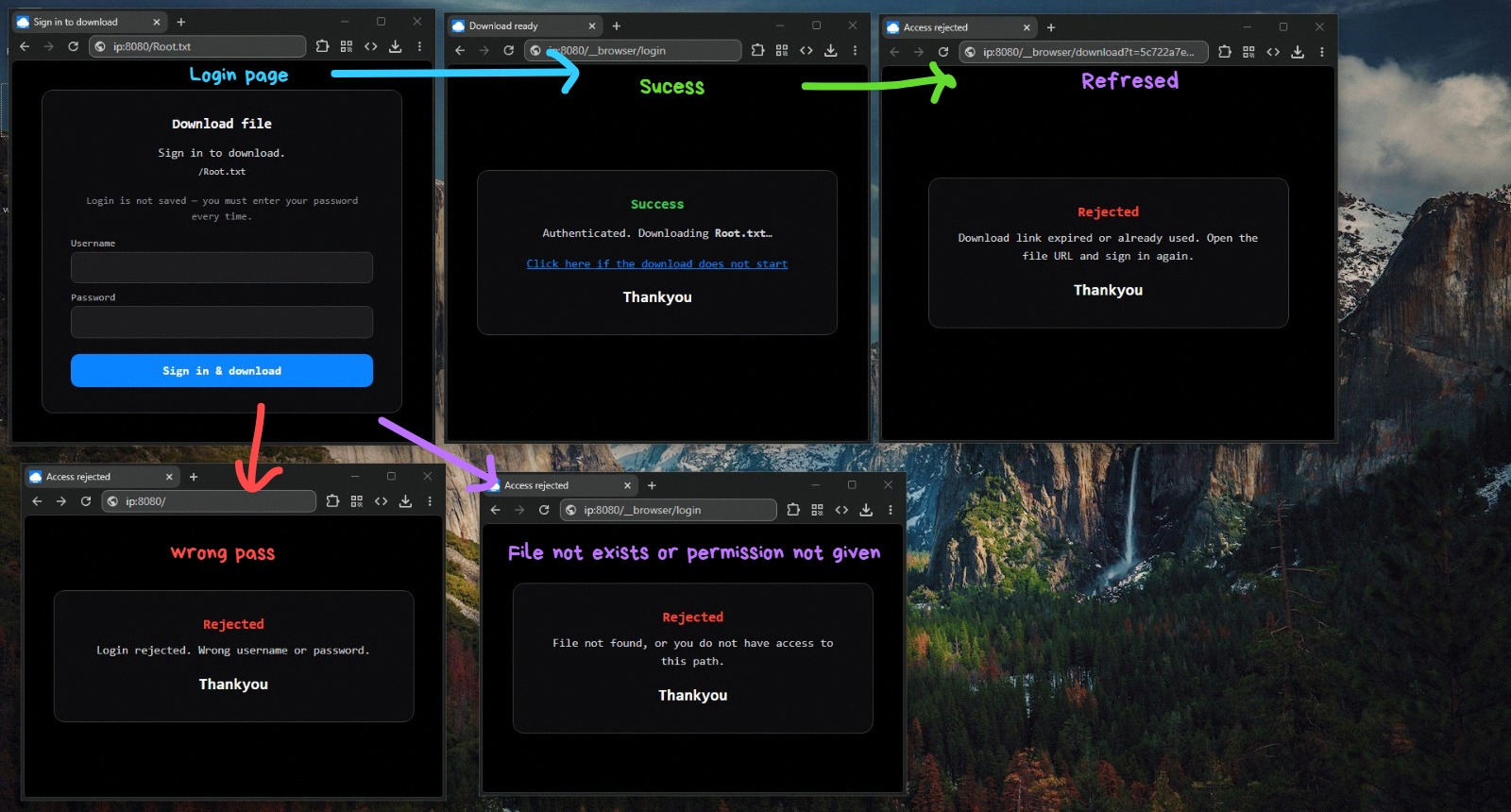
/path/to/file.ext | Sign-in form → one-time download |
Login is not cached like Basic for browsers. Each download needs credentials again. Links expire quickly and work once.
File download flow in the browser
Pointing a browser at a file path still gives a lightweight download UI: sign in, start the download, and see what happens on refresh, wrong password, or no access — all without turning the phone into a full web file manager.
Supported methods
OPTIONS, GET / HEAD (Range), PUT, DELETE,MKCOL, PROPFIND, PROPPATCH, COPY, MOVE,LOCK / UNLOCK.
Who sees what
| Account | Scope |
|---|---|
| Admin | Global root |
| User | {root}/{username} only |
| Read-only user | Reads OK; writes return forbidden |
Use the Log tab if a client fails — look for 401 (auth), 403 (permission / read-only), or 404 (path).